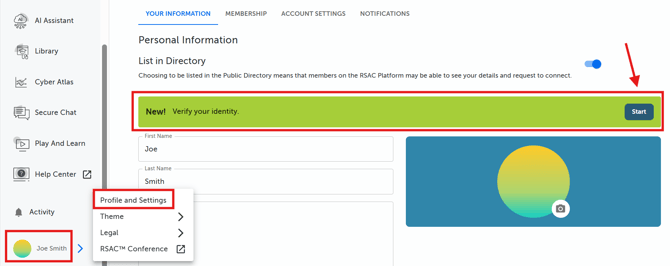
1. Open the Web App and navigate to the Profile and Settings by selecting your name in the lower-left-hand corner.
2. Be sure the Name section matches the name on your identification.
- If you’d like to use a preferred name within the community instead of your legal name, follow these steps:
- Note your preferred name in the First Name section and go through the verification process.
- If your First Name does not match your verification card, you will be prompted to add a preferred name after you complete the full verification process noted in steps 4-14.
- Please note your preferred name plus last name will still appear throughout the platform, and your full name and preferred name will be visible in your profile.
3. Click Start on the banner Verify Your Identity.
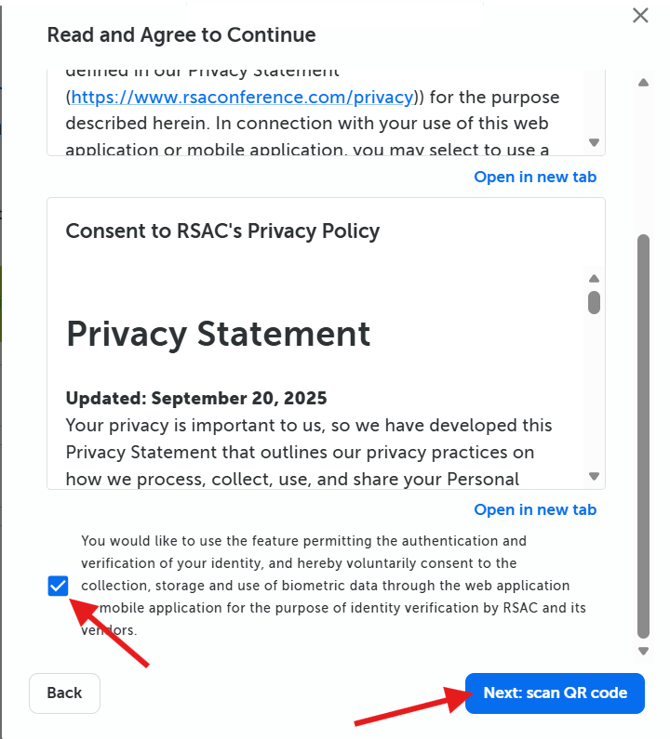
4. Make sure you have your mobile device and your valid ID document ready. Then click Next: Review Terms

5. You will be prompted to read and Consent to Process Biometric Data & the Privacy Statement. Then click Next: scan QR code
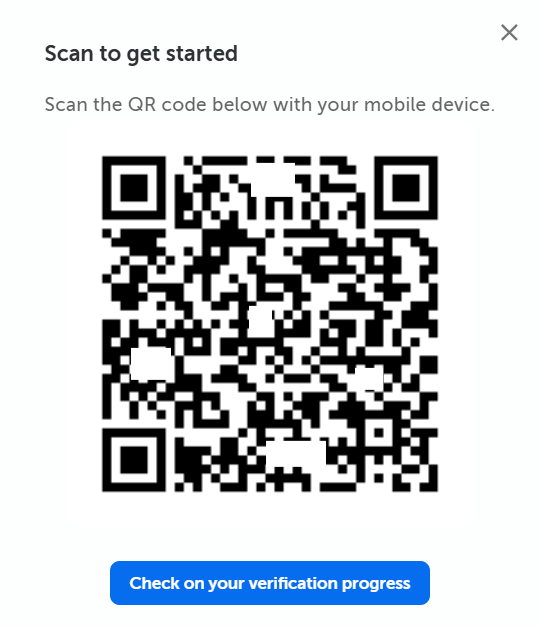
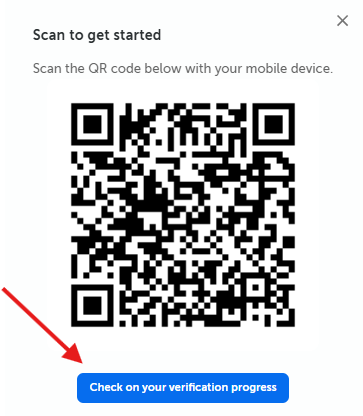
6. Next, go ahead and scan the QR code presented on your screen with your mobile device.
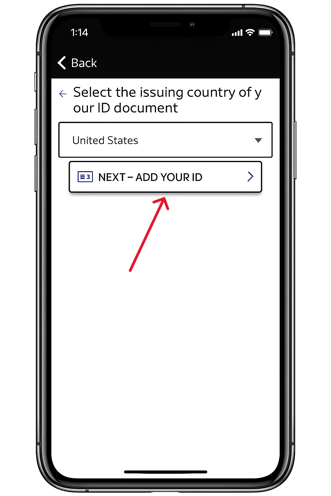
7. Once the QR code is scanned you will follow these steps on your mobile device. Select the issuing country of your ID Document & click Add Your ID Document.

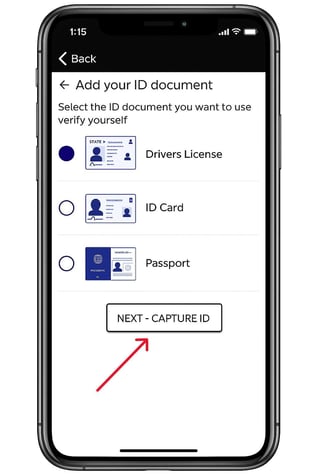
8. Select the type of ID Document you will use to verify yourself & click Next - Capture ID.
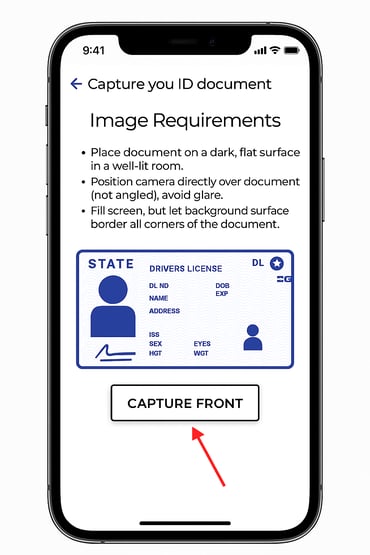
9. When taking a picture of your ID Document, follow these tips to ensure the picture is accepted and verified:
-
Grant access to the mobile device’s camera when prompted by the document upload process.
-
Place your identity document on a dark, flat surface in a well-lit room.
-
Position the camera directly over the identity document, not angled.
-
Minimize glare on the identity document.
-
Position the camera so the identity document fills the viewfinder, with the document edges at the edge of the viewfinder.
10. Once ready, click Capture Front and take the picture
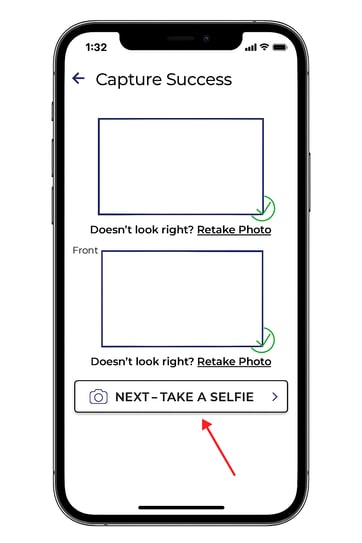
11. Once the front of the ID is captured, click Capture Back and take the picture

12. Next, you will need to take a Selfie. To take a successful selfie, follow these steps:
- Ensure that the room is well-lit, with low-glare and natural light where possible.
- Make sure your entire face is captured within the selfie.
13. Once ready, click Next - Take a Selfie and capture the picture.
14. Then click Verify Me.
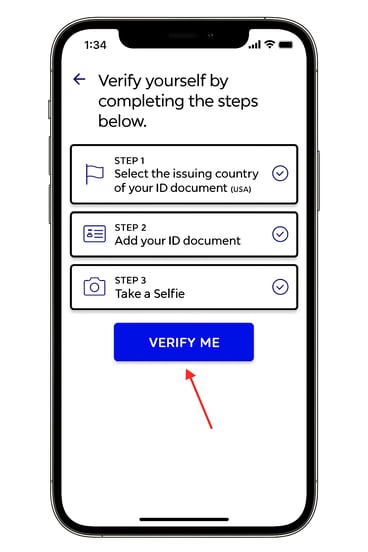 15. You will then be prompted to navigate back to your web browser.
16. Once back to your web browser and select Check on your verification progress
🎉Congratulations! You should now be verified!
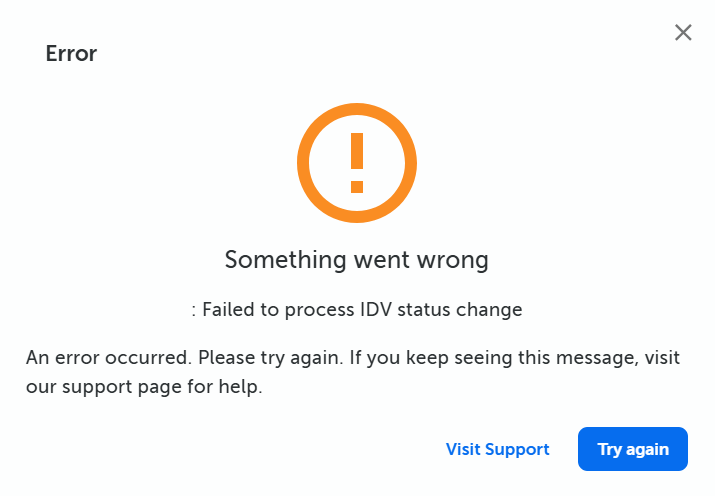
If you receive the error noted below, review this article for any troubleshooting guidance on IDV as you have a total of 3 tries to verify your identity. Feel free to also submit a ticket to the customer support team by clicking Contact Us in the upper-right hand corner of this support page.